Users of the Dutchie POS/VeriScan integration on Windows devices must update the VeriScan app to the latest version by August 12, 2025, to ensure uninterrupted scanning functionality.
Note that the screenshots and information on this page are taken from VeriScan's website and are subject to change. If you encounter issues, please visit VeriScan's support page to ensure you have the most up-to-date version of the instructions and to submit questions about the product.
Download and install the latest VeriScan App
- Close your existing version of the VeriScan app. If you're running VeriScan 3.3 or lower, uninstall that version before proceeding. Your existing settings and device login will be saved.
- Download the installer for Windows.
- Run VeriScanInstaller.exe and follow the steps in the installer.
The installer will require administrator access to your computer.
Set up your scanner
- Once you have the new VeriScan app installed, launch the VeriScan app and click the Settings button in the lower left corner.

- From the Settings menu, you can click on the Devices tab to add your scanners and other devices.

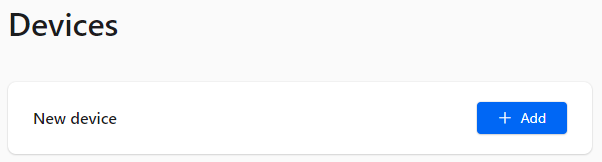
- Click on the blue Add button to add a new device.
-
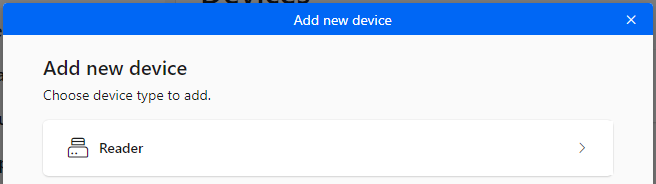
Choose Reader as your device type.
You should see your device listed in the available devices window.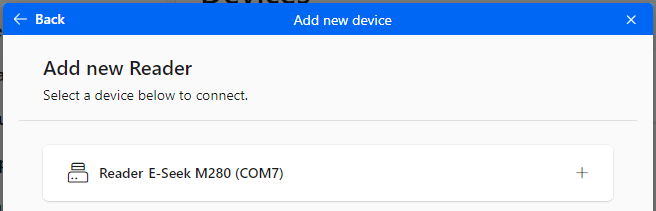
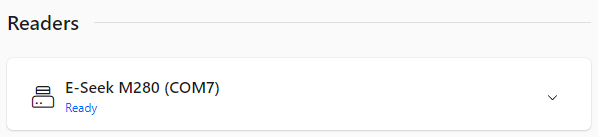
- Click on your device to connect it to the VeriScan app. Your device will then be added to the list of active devices and begin initializing.After a few seconds, your device will say "Ready."
Verifying your VeriScan Cloud account
On first launch, VeriScan should automatically locate your VeriScan Cloud account credentials from your previous installation. You can verify your license status in the app settings.
As long as you are connected to the cloud, the top bar will remain blue.
- The small cloud icon indicates your subscription is active.
- The ASDK symbol means your Authentication Engine is licensed and running.

Start scanning
Now that your device is set up, and you're logged into your VeriScan Cloud account, it's time to start scanning.
- Click on the Scan button in the top left corner to go to the main screen.

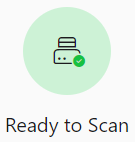
- At the center of the main screen, you'll see a green circle that say "Ready to Scan."
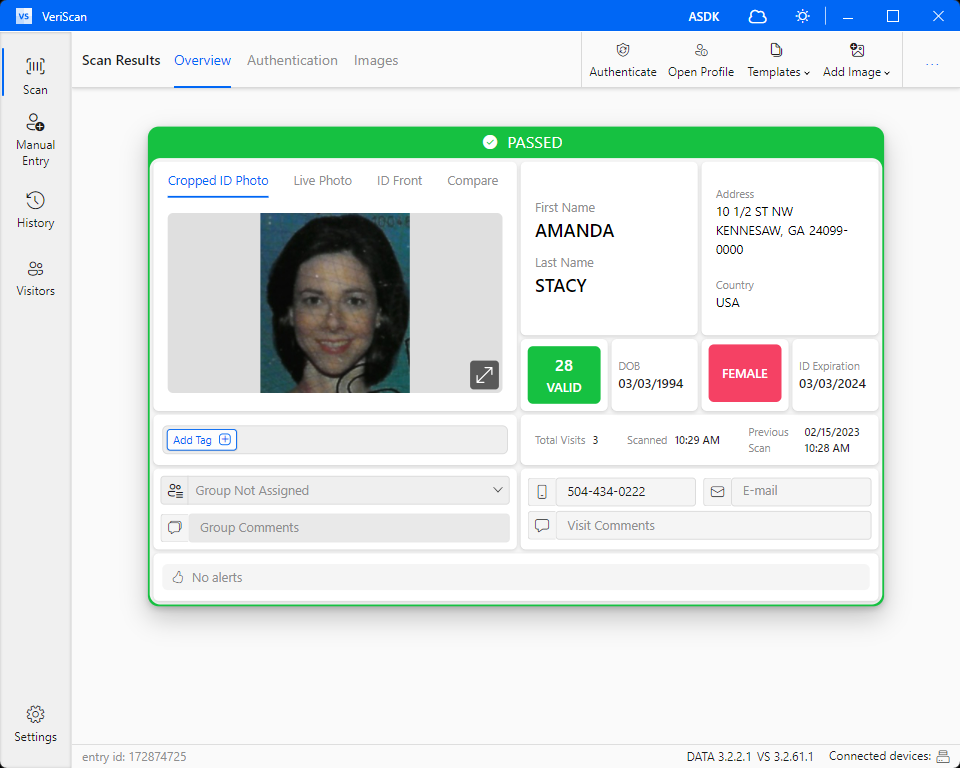
- After a successful scan, you should see all the relevant customer details in the scan results screen:
Contact VeriScan Support if you have any questions or need assistance.
What's next?
Learn how to set up automatic updates for future versions of VeriScan