Scheduled ordering allows customers to select a time slot when they want to pick up their order or have it delivered.
Things to know
- In scenarios where a chosen time slot length doesn’t match up evenly with your store hours, the last time slot may be shortened. For example, if store hours are 7:00 am - 7:45 pm, and you've chosen 1-hour time slots, the final time slot will be shortened to 45 minutes.
- When order limits are set, they are carried over as defaults until the following week.
Table of contents
Activate scheduled ordering and set options
- From Dutchie E-Commerce Admin, go to Settings > Ordering.
- Select an order type.
- In the Ordering Options section near the top, click the Scheduled Ordering checkbox to activate scheduled ordering for your dispensary, then click Options.
Time Slots
Select the length of ordering time slots a customer can select, such as 15 min, 30 min, or 1 hour.
Next Available Time
Select the time it typically takes to prepare an order so the system can present the customer with time slots that allow your staff to fulfill the order.
For example, if your Time Slots are set to 30 minutes and your Next Available Time is set to 10 minutes:
- Customers can place pickup orders for a 6:00-6:30 time slot until 6:20 (i.e., 10 minutes before the end of the slot). After 6:20, the next available time slot for pickup will be 6:30-7:00.
- Customers can place delivery orders for a 6:00-6:30 time slot until 5:50 (i.e., 10 minutes before the beginning of the slot) so your staff has enough time to prepare the order before the time slot for delivery. After 5:50, the next available time slot for delivery will be 6:30-7:00.
If you also enable Advanced Ordering below, make sure your next available time is less than your Advanced Ordering window. For example, if you set a Next Available Time of 1 day and 2 hours, and your Advanced Ordering window is set to 1 day, customers will not see any available time slots.
Advanced Ordering
Turn this on to allow customers to order days in advance, then select how many days in advance. This window should be more than your Next Available Time.
Same Day Deliveries
Choose whether to allow customers to place a delivery order for the current day.
Turn off Same Day Deliveries if you want to schedule deliveries a day in advance to better plan and optimize routes, such as when you're short-staffed or have limited vehicles available.
Turning off same-day delivery also turns off ASAP Ordering and makes Order Limits unavailable for the current day.
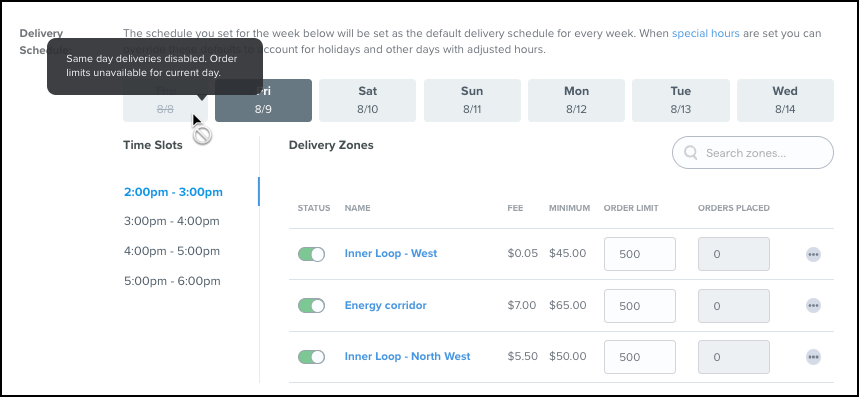
With same-day delivery off, the soonest available time slots customers can choose for delivery orders will be your next business day. Optionally, use a custom text banner or checkout message to let customers know if you're not offering same-day delivery. You can turn same-day delivery back on at any time.
Ordering Limits
Limit the number of orders in each time slot. The default is 500 and limits can be set limits by day for the current week.
When you're finished setting your scheduled ordering options, click Publish.
Repeat the same steps for any additional order types.
The customer experience
With scheduled ordering is enabled, your customers will build their cart as normal and proceed to checkout.
At checkout, customers will now select a Time, either ASAP or Scheduled For Later. The available times depend on whether they selected pickup or delivery.
After the customer places an order, they'll receive a text or email when the order is ready for pickup or out for delivery:
- Pickup: “Your order is ready to be picked up [today/tomorrow*] between [timeslot - ex: 6 pm - 6:30 pm]! We’ll see you then!”
- Delivery (no change): “Your order is on it's way! Please have your payment and ID handy for when the order arrives!”
- Note: The “Today/tomorrow” part of the message is only applicable when after hours ordering is enabled and is based on whether the order was placed before or after midnight. Before midnight = tomorrow, after midnight = today.
Onfleet integration
With scheduled ordering and the Onfleet integration both enabled, the scheduled time slot for delivery will be passed along to Onfleet and will be displayed in their system.
Additional Reading
Delivery specific time slot configuration for Dutchie E-Commerce