This article explains how to configure and use Scan to Redeem, a Dutchie Loyalty & Marketing Pro feature used with the Dutchie mobile app and Dutchie POS. This feature is coming soon!
Scan to Redeem lets a budtender scan a customer's QR code from the Dutchie mobile app, or a loyalty pass barcode, at the register to redeem loyalty points. It replaces manual point lookup with a single scan that identifies the customer and applies their eligible rewards.
Redeeming loyalty rewards previously depended on manual lookup or a verbal exchange between the budtender and the customer, which could slow down checkout and introduce room for error. This approach also created two specific problems for the business:
- Unnecessary discounts. If a budtender mentioned a customer's available points before the customer asked about them, a sale that was already going to happen at full price could end up discounted for no additional reason.
- Missed mobile app engagement. Redeeming points without requiring the mobile app didn't confirm whether the customer was an engaged app user, so the dispensary missed a chance to grow the audience it could reach through the app, for example through push notifications.
Scan to Redeem works across all loyalty redemption method types: apply loyalty as a discount, apply loyalty as a payment method (pre-tax), and apply loyalty as a payment method (post-tax). It also supports redemption alongside pay by bank, powered by Plaid, using a combined rewards and payment barcode.
For Dispensary Managers, this feature gives you control over how and when staff can override the scan requirement. For Marketing Directors, it increases mobile app adoption, which supports broader marketing and engagement goals. For Budtenders, it standardizes the redemption process at checkout and removes the need for manual point lookup.
Things to know
- Scan to Redeem is available as part of Dutchie Loyalty & Marketing Pro.
- Consumers need either the Dutchie mobile app or a loyalty pass with a scannable barcode to redeem points without a manual override.
- Scan to Redeem applies to all loyalty redemption method types: apply loyalty as a discount, apply loyalty as a payment method (pre-tax), and apply loyalty as a payment method (post-tax).
- A rewards-only barcode cannot be used to complete a pay by bank transaction. Customers must present a combined rewards and payment barcode for that flow.
- Requiring customers to scan and requiring a manager PIN for manual redemption are separate settings. Turning on the scan requirement does not automatically require a manager PIN for manual redemption. See Enable Scan to Redeem in the Backoffice below.
Enable Scan to Redeem in the Backoffice
Note: These settings are location-specific. For example: a chain can test this new flow at one store first, before applying to all stores.
- Sign in to the Dutchie Backoffice and select Marketing.
- Select Loyalty.
- In the In-store redemption section you can set Require customer scan and Require Manager PIN to Yes or No.
- Save your changes. If a change does not appear to take effect right away at the register, refresh the browser.
These two settings work independently of each other:
- If you turn on the scan requirement but leave the manager PIN setting off, budtenders can still choose to redeem points manually, without entering a PIN. For example, if the scanner malfunctions or unable to scan the barcode"
- If you turn on both settings, a budtender must enter a manager's PIN to complete a manual redemption.
Redeem loyalty points with Scan to Redeem
Once Scan to Redeem is enabled, the redemption flow at checkout works the same way regardless of which redemption method your loyalty program uses.
- Check in the customer and add items to the cart.
- The cart displays a button showing the number of rewards or points available to the customer.
- Select that button to begin redemption.
- Ask the customer to scan their Dutchie mobile app QR code or loyalty pass barcode.
- Once the scan is confirmed, the points or reward apply to the cart.
- Complete checkout using the customer's preferred payment method.
If your loyalty program uses a rewards-only barcode and the customer wants to pay with pay by bank, that barcode will not work for payment.
Ask the customer for their combined rewards and payment barcode instead.
See Redeem points and pay with pay by bank below.
Redeem loyalty points manually
Scan to Redeem includes a manual override for situations where a barcode or scanner is not working, or where a customer does not have the mobile app but you still want to allow redemption.
- At checkout, select the button to redeem loyalty points, as you would for any redemption.
- Because Scan to Redeem is enabled, the Register prompts you to scan the customer's app or loyalty pass.
- Select Redeem manually.
- If your Backoffice settings require a manager PIN for manual redemption, enter the manager's PIN when prompted.
- Apply the loyalty points or reward manually.
- Complete checkout using the customer's preferred payment method.
Handle a customer mismatch
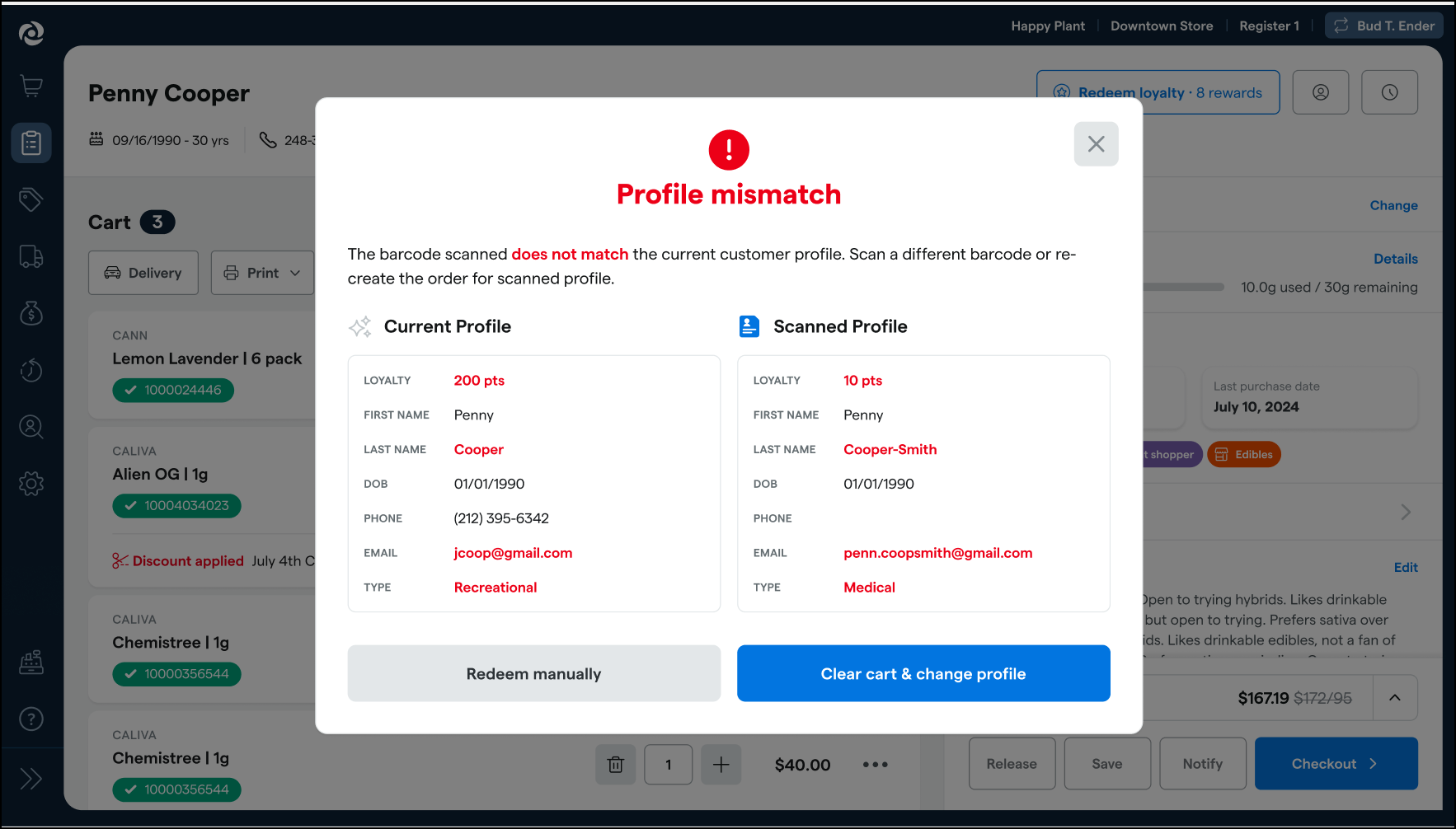
If a budtender scans a barcode that does not match the customer checked in for the current cart, the Register displays a customer mismatch modal.
What you will see: the popup shows the currently checked-in customer's profile and highlights the details that differ from the scanned barcode.
What you can do:
- Proceed and redeem points manually for the checked-in customer, or
- Clear the cart and change the customer profile to match the scanned barcode.
Redeem points and pay with Pay by Bank
If a customer wants to redeem loyalty points and complete their purchase with Pay by Bank, they need to present a combined rewards and payment barcode rather than a rewards-only barcode.
- Ask the customer whether they are paying with Pay by Bank.
- If so, ask them to present their combined rewards and payment barcode.
- Scan the barcode to apply the loyalty points or reward and initiate the pay by bank checkout together.
- Complete the transaction following your standard pay by bank checkout process.
Troubleshooting
Why did I get an error when trying to use a rewards barcode to pay with pay by bank? A rewards-only barcode only works for redeeming points through Scan to Redeem. It cannot be used to complete a pay by bank transaction. Ask the customer for their combined rewards and payment barcode instead.
What happens if I scan the wrong customer's barcode? The Register displays a customer mismatch modal showing the checked-in customer's profile and the details that differ from the scanned barcode. You can proceed and redeem manually for the checked-in customer, or clear the cart and change the profile to match the scanned barcode.
Can a customer redeem points if they do not have the mobile app or their barcode is not working? Yes. Select Redeem manually at checkout. Depending on your Backoffice settings, you may need to enter a manager PIN before proceeding. See Enable Scan to Redeem in the Backoffice above for how these settings interact.
I changed a setting in the Backoffice, but I do not see it reflected at the register. What should I do? Refresh the browser at the register. Some setting changes require a refresh before they take effect.
The customer says they didn't get any confirmation on their phone after redeeming points. Is something wrong? No. As of this release, the mobile app does not yet show a confirmation, such as a push notification or in-app message, after a redemption at the register. This is planned for a future release.