This article explains the Hide Unavailable Days setting in Dutchie E-Commerce and is intended for anyone who manages delivery scheduling on their online menu.
Some dispensaries offer delivery on a very limited schedule, for example, once a month. To support this, staff typically close delivery hours for every day of the month except the one day delivery is available. While this setup works correctly on the back end, it can create a frustrating experience for consumers browsing the online menu. Without this setting enabled, consumers see every day of the calendar as an option, including the days with no available delivery times. They must click through each unavailable day one at a time until they find the single day that works, which can make the ordering process feel confusing and time-consuming.
The Hide Unavailable Days setting solves this by removing any delivery day with no available time slots from the consumer-facing calendar. Consumers only see days that actually have open delivery windows. You may also find this useful for maintaining a clean, professional storefront experience during limited-availability promotions or seasonal delivery windows.
Before you begin
- This setting is most useful for dispensaries with infrequent or limited delivery availability, such as one delivery day per month.
- When enabled, the system removes any delivery day with no available time slots from the consumer-facing calendar. Consumers will only see days that have at least one open slot.
How hiding unavailable days works
By default, the consumer-facing delivery calendar displays every day, whether or not delivery is actually available that day. If your dispensary has set delivery hours to be closed on most days of the month, consumers browsing the calendar will see those closed days along with the one or few open days, and they will need to check each day individually to find one that works.
When you turn on Hide Unavailable Days, the system removes days with no open delivery time slots from the calendar entirely. Consumers will only see the days on which delivery is actually available.
Turn on Hide Unavailable Days
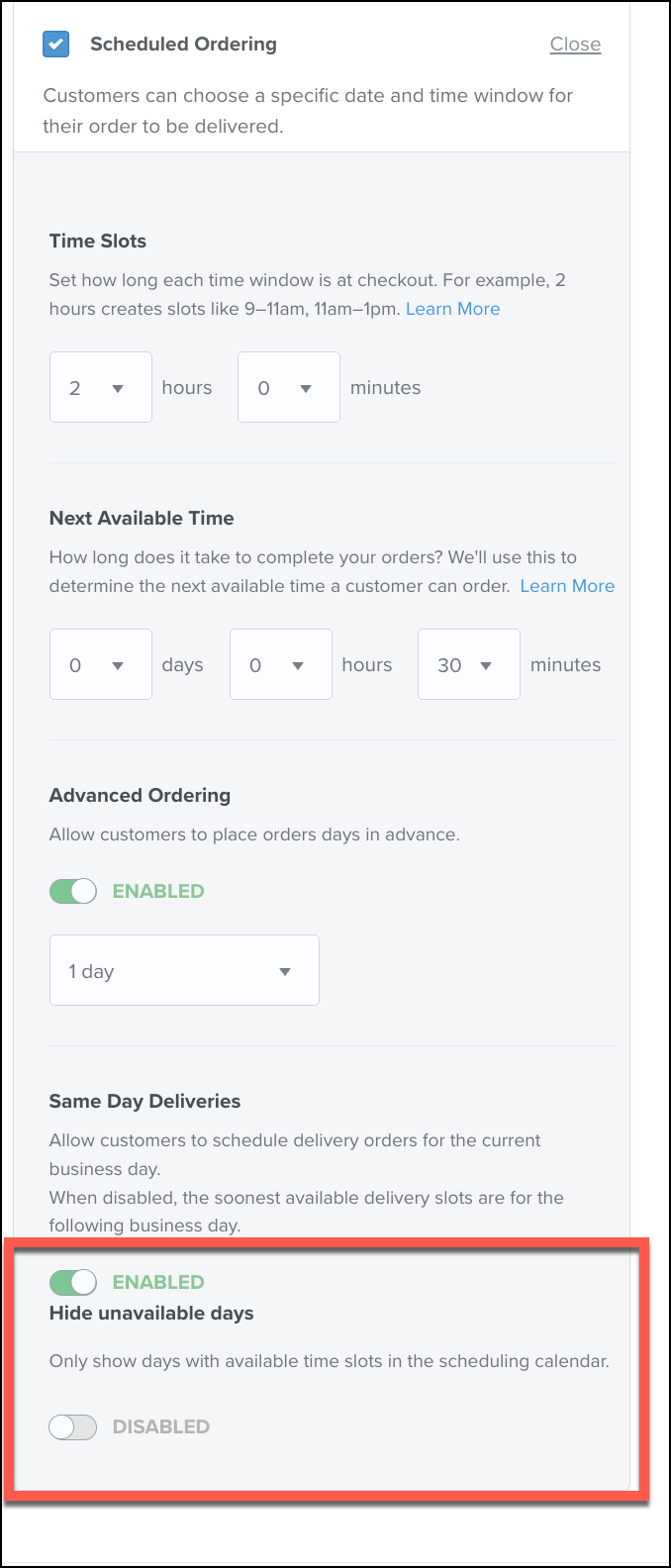
- Go to Settings > Ordering > Delivery> Scheduled Deliveries in your Dutchie E-Commerce admin.
- Locate the Hide Unavailable Days toggle.
- Enable the toggle.
- Confirm your changes are saved.
Verify the setting on your storefront
- Visit your Dutchie E-Commerce storefront as a consumer would.
- Open the delivery date selector.
- Confirm that only days with available delivery time slots appear. Days with no open slots will no longer display.