Learn how to create marketing campaigns in Dutchie POS.
This feature is available for all Loyalty & Marketing Pro customers.
Things to consider
- You can create campaigns that target your entire customer list, or target specific audiences by first creating customer segments. Learn more about how campaigns, customer segments, and discounts work together.
- All Dutchie Loyalty & Marketing Pro subscribers can create email campaigns. SMS (text message) campaigns and push notification campaigns via a Dutchie Mobile App are optional extras.
- The unsubscribe link is automatically appended to emails at delivery time and will not appear in the campaign builder preview.
- Access to this feature is controlled by these user permissions:
- Access Email Marketing
- Create/Edit campaigns
- Create/Edit email templates
- Send campaigns
- View campaigns
- View email templates
Create a campaign
- Go to Marketing > Campaigns.
- Click the Create campaign button and select what type of campaign you want to create:
- Automated campaigns are ongoing and send messages to customers automatically based on their actions or attributes, such as recent or first-time purchases, upcoming birthday promotions, loyalty enrollment promotions, or abandoned cart reminders.
- One-time blast campaigns are used for one-time or temporary promotions or other timely messaging and do not repeat automatically.
- For Automated campaigns, select a Campaign type.
Channels
All Loyalty & Marketing Pro subscribers can create Email campaigns. SMS campaigns are an optional upgrade. Push notification campaigns require a Mobile App.
If you have more than one campaign channel available, you'll be prompted to select which channel(s) you want to use. Otherwise, this step won't appear.
Waterfall campaigns
If you select more than one channel, you have the option to Send as waterfall campaign. Waterfall campaigns allow you to drag and drop channels into priority order. The system only sends messages via lower-priority channels to consumers for whom higher-priority channels failed, thereby reducing costs and redundant messaging. Learn more about waterfall campaigns.
If you don't select the Send as waterfall campaign toggle, the system will attempt to send the message to all consumers via all selected channels.
Templates
Next, select from pre-built or user-created message templates. Or, choose Blank to start from scratch.
Build content
- Enter a Campaign name. This won't be visible to consumers.
- For one-time blast campaigns, select whether to send to All customers or Specified audiences. With specified audiences, select one or more customer segments to target, or click Create a new segment. For automated campaigns, the audience is pre-determined by the campaign type you selected.
- Depending on campaign type, you can configure the timing of the campaign (i.e., how long after a customer's first purchase or how many days prior to the customer's birthday should the campaign be sent; what time of day to send, etc.)
- Optionally, apply Tags to help you look up this campaign later and keep campaigns organized. You can create campaign tags by going to Marketing > Configure > Tags.
- Enter a UTM term.
- Campaign links will include this as the utm_term parameter for analytics purposes.
- This is an optional setting that can be enabled by Dutchie Support.
-
Enter a Subject and Preview text for the email. This will be visible to consumers.
Select the Sender email that you want to appear as the "From" address of the email.- You may have multiple Sender email options pre-configured for your location. If you only have one, this option is greyed out.
- Contact Dutchie Support to change or add sender email addresses (i.e., noreply@northcannabis.com) or sender names (i.e., "North Cannabis Rewards").
- Sender phone numbers for SMS campaigns are configured as part of your 10DLC registration.
- Scroll down to design the content of the campaign.
- Click Next.
Design campaigns
Dutchie’s Campaign builder gives you full creative control to design and launch branded promotions in minutes. Drag-and-drop content blocks, built-in AI content tools, and direct menu links let you craft personalized messages that drive customer loyalty while preserving the unique look of your brand.
Set campaign styles
Configure brand guardrails in the Settings tab to ensure a consistent look and feel across your messaging. With these brand guardrails configured, every content block inherits the styling automatically:
- Set the Content width and Alignment (left vs. center).
- Choose your Campaign colors and Font.
- Select the CTA hue.
Create the layout
Establish the structure of your campaign by dragging row patterns from the Rows tab onto the canvas.
A Layout section for multi-column rows will have options for:
- Stack on mobile (on/off)
- Stack order on mobile (right column or left column first)
- Hide sections on desktop, mobile, or neither (off)
Selections will dynamically update when viewing the mobile preview:
Add content blocks
Drag and drop specific elements from the Content tab into your established rows.
- Titles and Paragraphs: Use these for headlines or body copy.
- Images: Drag in product shots or banners. Input a URL to trigger your online menu and image titles, or alt text.
- Buttons: Use for primary CTAs. Input a URL to trigger your online menu (e.g., Shop Edibles).
- Lists, Tables, Dividers, and Spacers: Use these to structure long-form messages.
- Social, Video, Icons, and Text: Use these to enrich your design.
- HTML: Use this to embed custom code, such as a survey question.
- Abandoned Cart: Drag this block into an abandoned cart automated win-back campaign to display a customer's abandoned items.
Style each block
Select any content block on the canvas to open the property panel on the right. This panel allows you to adjust visual, spatial, and interactive elements.
Write with AI
The Write with AI tool is available within the property panel for text-based blocks. This tool generates copy text quickly while maintaining clear, concise, and action-oriented messaging.
Configure button actions
To direct customers to a specific destination when they click a button:
- Select the button block.
- Locate the Action section in the property panel.
- Set the Link type to Open web page.
- Input the destination URL.
Use dynamic URLs
For dispensaries using reverse proxy, dynamic URLs route customers to destinations based on shopping behavior. Select a content block that supports links:
- Click Special links to view dynamic options.
- Select from available options, including:
- Last shopped at dispensary
- First shopped at dispensary
- Most shopped at dispensary
Set Background Images
Set a Row background image with a URL link:
Review
Review and confirm the details of your campaign, and use the Desktop and Mobile toggles to preview your content in different formats. ou can also preview how campaigns will appear on devices with dark mode enabled:
When you're ready, click Publish now.
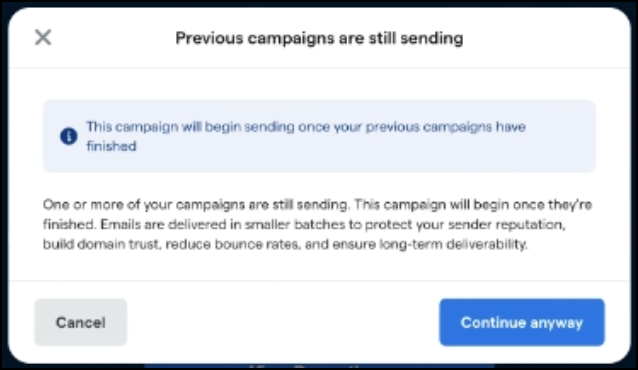
If you have other campaigns queued ahead of this one and your current daily maximum means there will be a delay before this campaign can begin sending, a dialog box will let you know.
Tips for sending emails and avoiding spam folders
In order to improve reputation for your email, we suggest sending your first few campaigns to reliable email addresses. The fewer bounced emails, emails marked as spam, more clicks, the better your reputation becomes, and the more likely emails are to reach the target audience.
Establish good email habits with email warmups
Email warmup is a practice that will establish reliability and consistency with sending emails. Dutchie automatically and gradually increases the maximum number of email sent per day to help establish a reputation with Internet Service Providers (ISPs) as a legitimate email sender.
| Day | Maximum Emails |
| Day 1 | 50 emails |
| Day 2 | 100 emails |
| Day 3 | 500 emails |
| Day 4 | 1,000 emails |
| Day 5 | 2,000 emails |
| Day 6 | 4,000 emails |
| Day 7 | 8,000 emails |
| Day 8 | 16,000 emails |
| Day 9 | 25,000 emails |
| Day 10 | 35,000 emails |
When you create a one-time blast campaign, on the Build content step you'll see your current daily maximum emails and how many emails you've sent out of that total.
You'll also see how many days it will take to send the email to all recipients based on the campaign’s audience size, current daily maximum, increases in the daily maximum over time, and other campaigns queued ahead of it:
Track unsubscribes
Unsubscribes, bounced emails, and low delivery rates increase the likelihood of emails to go to spam folders. We recommend uploading a list of your unsubscribed emails before sending your first campaign, so that Dutchie won't email those people again.
Use permissions to separate campaigns and avoid mistakes
Leverage the different Email marketing permissions for campaigns to control who can view, edit, and send campaigns in the Backoffice. This keeps your campaigns safeguarded and accessible to trusted people in your organization. See User permissions reference guide.
Archiving = Deleting campaigns
It's important to note that Archived campaigns in Dutchie's Loyalty & Marketing suite are essentially deleted. Archiving a campaign is a permanent, irreversible action; archived campaigns cannot be viewed or restored.